
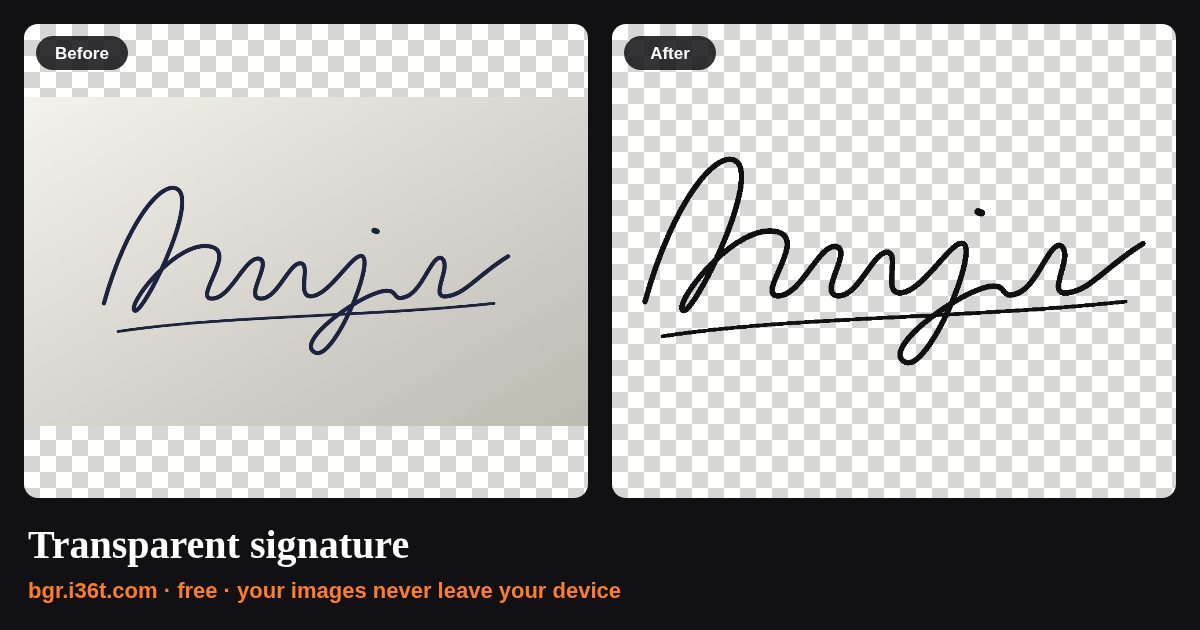
How to use the signature background remover
- Sign with a dark pen on plain white paper.
- Photograph it from straight above in even light, then add the photo.
- Adjust ink sensitivity until thin strokes appear without paper speckles.
- Choose black, blue or original ink and download the PNG.
What people use it for
- Signing PDF forms
- Email footers and letters
- Digitising handwritten notes and drawings
- Certificates and invitations
Tips for a clean result
- Lined paper leaves lines behind. Use blank paper, or erase them with the brush.
- A thicker felt-tip pen reproduces better than a faint ballpoint.
- Keep your signature file private: anyone who has it can paste it onto documents.
Which option to choose
| Option | Best for | Watch out for |
|---|---|---|
| Ink extraction (default here) | Pen on paper, even with soft shadows | Printed lines count as ink |
| Remove white | Flat, evenly lit scans | Shadows across the page remain |
| Automatic AI | Not recommended for handwriting | AI models look for objects, not strokes |
Private by design
Background Remover does its work inside your browser. Your pictures are not uploaded, stored or seen by us. We record anonymous usage such as which tool was used and the export format. Read the privacy details.
Frequently asked questions
Is it safe to process my signature here?
The image is processed in your browser and is never sent to us or anyone else.
Can I change the ink color?
Yes: black, blue, or the colors from your photo.
Is a transparent signature image a legal e-signature?
That depends on the law and the recipient. An image of a signature is not a certified digital signature.
More free tools
Remove background
- Background Remover
- Remove white background
- Transparent PNG maker
- Remove background from logo
- Product photo background remover
- Change background color
- Blur photo background
- Passport photo background
- Remove green screen
- Batch background remover
- Profile picture background remover